How to Compress a PDF Without Losing Quality
Reduce PDF file size for email and web while keeping text crisp and images sharp. Here's how smart compression works.
Large PDFs are a daily nuisance — too big to email, slow to upload and awkward to store. The good news is that most documents can be compressed dramatically without any visible loss in quality.
In this guide you'll learn how modern PDF compression actually works, how to shrink files by 40–80%, and how to do it in seconds with DocsFusion.
What makes a PDF so large?
Most oversized PDFs are bloated by images. A single high-resolution photo or scan can be several megabytes on its own, and documents often embed images at far higher resolution than the screen or printer will ever use.
Redundant data, uncompressed fonts and metadata add extra weight. Smart compression targets all of these at once.
How smart compression works
DocsFusion analyses each file and applies the optimal strategy automatically instead of using a single blunt setting.
- Downsampling oversized images to a sensible resolution for viewing and printing.
- Re-encoding images with efficient, modern codecs.
- Removing duplicate and unused objects from the file.
- Optimising and subsetting fonts so only the characters you use are embedded.
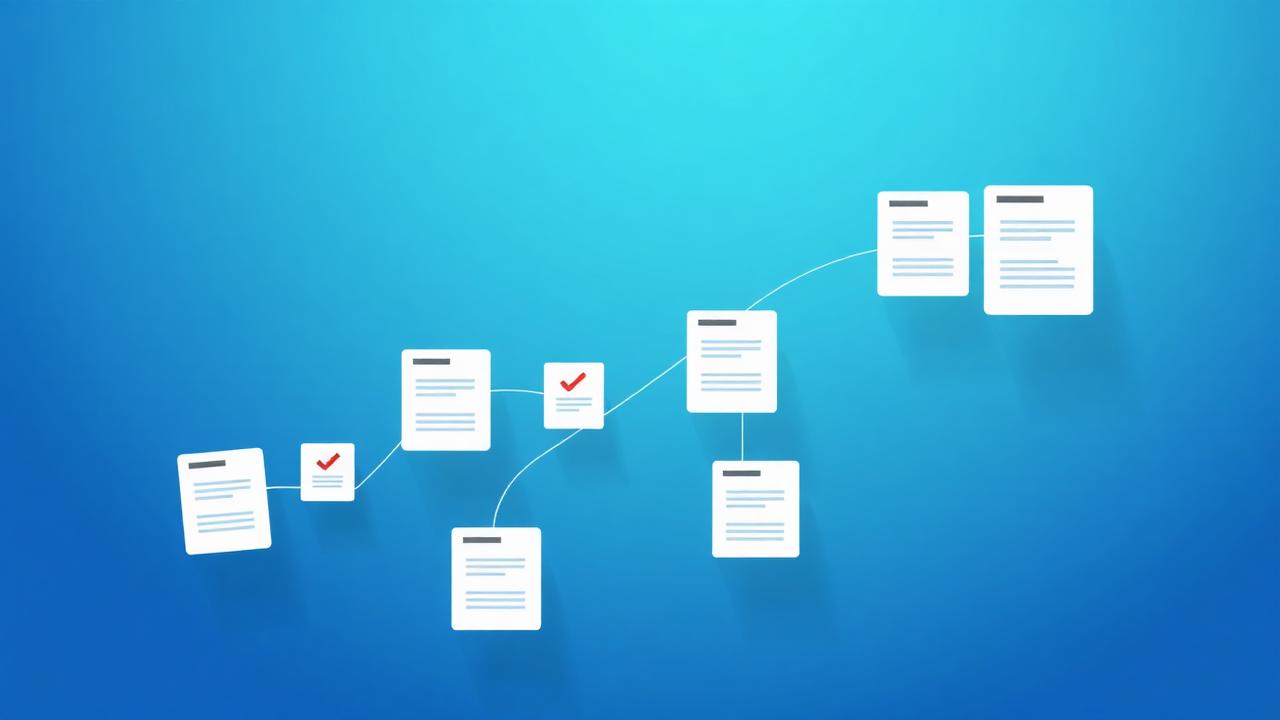
Compressing a PDF step by step
The process takes three clicks: open the Compress PDF tool, upload your file, and download the optimised result. You'll typically see file sizes drop by 40–80% depending on how image-heavy the document is.
Text stays perfectly sharp because DocsFusion never rasterises real text — only images are optimised.
Compression and privacy
For sensitive documents, compression happens in an isolated environment protected by 256-bit TLS, and files are deleted automatically within an hour. Your content is never stored or reused.
Pro tips
- Aim for the smallest size that still prints cleanly — 150 DPI is plenty for most office documents.
- Compress after merging, not before, so the whole final document is optimised together.
- Scanned documents shrink the most, since scans are almost entirely images.
- If you need an even smaller file for the web, export images separately with the Image Compressor.
Real-world examples
Emailing a 40MB proposal
Shrink an image-heavy proposal below common 25MB email limits without touching the text quality.
Uploading to a web portal
Compress a scanned contract so it slips under a strict upload-size cap on a government or bank portal.
Frequently asked questions
Conclusion
Compression is the easiest way to make PDFs faster to send, upload and store — and with smart, content-aware optimisation you rarely give up any visible quality.
Next time a file is too big, run it through Compress PDF and watch it shrink in seconds.
Maya Bennett
Document Workflow Specialist
Maya writes about productivity, document automation and getting more done in less time.