How to Merge PDF Files Online in Seconds
Combine multiple PDFs into one polished document without installing software. A step-by-step guide using DocsFusion.
Merging PDF files is one of the most common document tasks — whether you're assembling a report, combining scanned pages, or bundling invoices for a client. Yet many people still open bloated desktop software just to stitch a few files together.
With DocsFusion you can merge PDFs entirely in your browser, in seconds, with no installs and no sign-up. This guide walks through the process step by step and shares the tricks that make combining documents effortless.
Why merge PDFs in the first place?
A single, well-ordered PDF is far easier to share, print and archive than a scattered pile of files. Merging keeps related pages together so nothing gets lost in an email thread or a shared drive.
It's also more professional. Sending one clean document instead of six attachments signals that you value the reader's time — and it removes any ambiguity about the order pages should be read in.
How to merge PDFs step by step
The DocsFusion Merge PDF tool is designed so anyone can use it on the first try. Here's the exact flow:
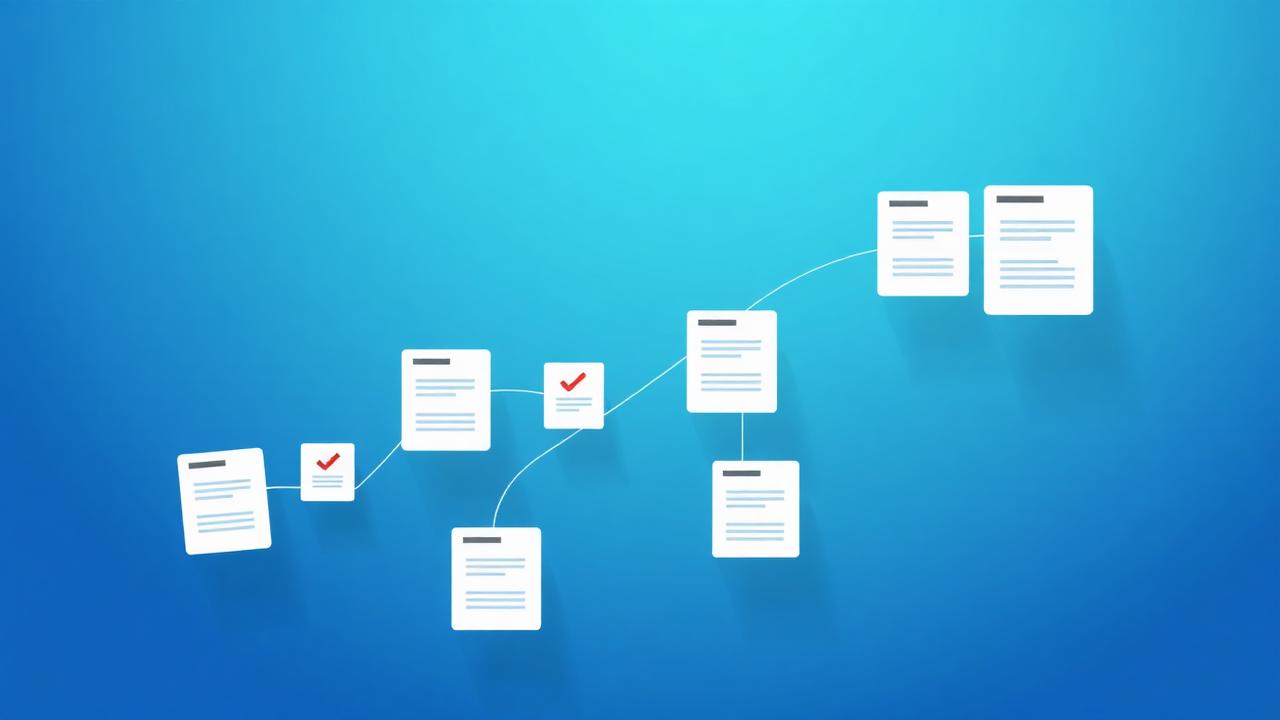
- Open the Merge PDF tool and drag your files into the upload area — or click to browse.
- Add as many PDFs as you need; there's no arbitrary file limit.
- Drag the thumbnails to reorder pages until the sequence is exactly right.
- Click Merge and let DocsFusion combine everything into one document.
- Download your finished PDF — it's ready in seconds.
Keeping quality and layout intact
DocsFusion combines documents while preserving the original layout, fonts and images. There's no re-rendering that degrades text or blurs graphics — the pages you upload are the pages you get back, simply joined in order.
Because the whole process runs on a secure, globally distributed network, even large multi-page documents finish quickly, and your files never leave an encrypted pipeline.
What happens to your files
Privacy is built in. Every uploaded file is transferred over 256-bit TLS and permanently deleted within one hour of processing. Nothing is stored long-term, and your documents are never used to train models or shared with third parties.
Pro tips
- Rename your files before uploading so the default alphabetical order already matches the sequence you want.
- Merge a cover page first, then the body, then appendices — readers expect that structure.
- If a PDF is huge, compress it before merging to keep the final file email-friendly.
- Use Organize PDF afterwards if you need to rotate or delete a stray page.
Real-world examples
Assembling a monthly report
Combine a summary, three department PDFs and a data appendix into one polished report your team can read top to bottom.
Bundling scanned receipts
Merge dozens of scanned receipts into a single expense PDF that's easy to submit and archive.
Frequently asked questions
Conclusion
Merging PDFs shouldn't require heavy software or a subscription. With DocsFusion you can combine, reorder and download a polished document in seconds — securely and for free.
Try it the next time you need to bundle a report, contract or set of scans, and see how much time a clean, single-file workflow saves you.
DocsFusion Team
Product & Content
The people building DocsFusion — sharing what we learn about documents, PDFs and AI.